
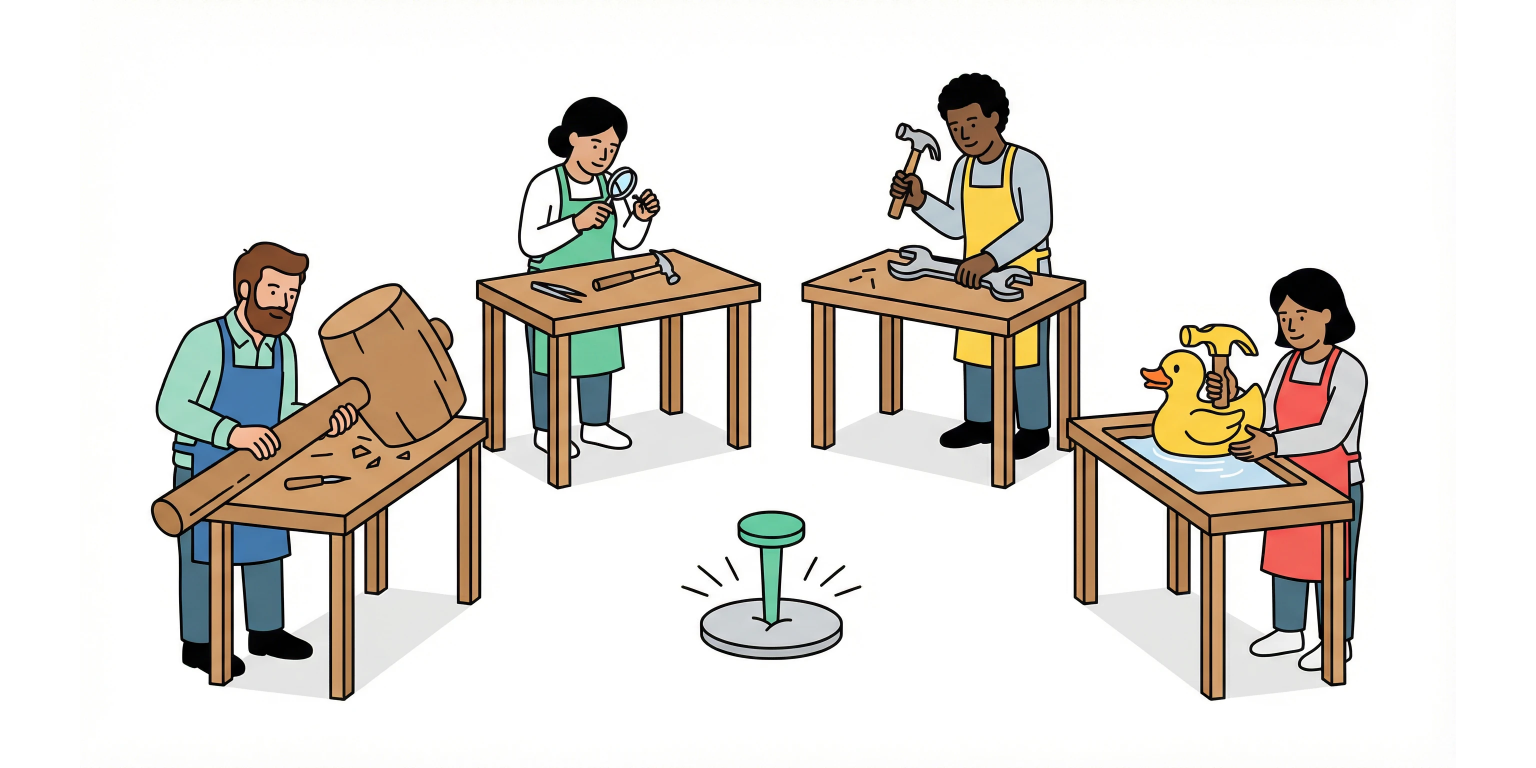
You wrote a slash command that saves you twenty minutes a day. Good. Your teammate is still doing the work by hand. The new hire on the platform team has never heard of the file.
That is the gap between a personal shortcut and organizational leverage. A /deploy skill living in your .claude/ directory is a private dotfile. A packaged plugin — parameterized context files, declared MCP connections, marketplace distribution — runs for every engineer the moment they install it. Same skill. Different topology.
This is the full lifecycle. Spotting a workflow that survives the abstraction. Building the skill. Pulling the team-specific values out into context files. Wiring MCP without shipping credentials. Versioning, distribution, and the failure modes that kill adoption before the second team installs it.
Step Zero: Which Workflows Survive Abstraction
Most repeated tasks do not deserve a plugin. The ones that do share three properties.
Three properties separate plugin candidates from workflows you should leave as personal shortcuts. Frequency — someone runs the workflow at least weekly. Variable inputs, stable structure — the data shifts, the skeleton holds. High-context — the work depends on knowledge that lives in heads, not in documentation.
Monday standup briefs. Sprint summaries. Incident post-mortems. Onboarding context dumps. Release notes. Each one has a predictable skeleton and inputs that change every run. The bad candidates are one-off migrations and anything that requires a new judgment call each time. If the human has to think hard mid-flow, the plugin is not absorbing the task — it is just dressing it up.
One-off migration scripts
Tasks that change shape every run
Workflows that require a new judgment call mid-flow
Processes only one person ever runs
Weekly briefs with stable structure and shifting inputs
PR review checklists with team-specific rules
Sprint planning summaries pulled across repos
Onboarding context generation for new hires
Concrete Example: /team-brief From First Run to Marketplace
One real plugin. Six teams. Same code, different context files.
Make this concrete. The org has six teams. Every Monday, each EM writes a brief covering what shipped, what is in progress, what is blocked. They pull from GitHub PRs, Jira tickets, Slack threads — all by hand. Thirty to forty-five minutes per manager per week.
The workflow checks every box. Frequent. Variable inputs, stable output. High-context. Different teams, different repos, same operation. This is what /team-brief looks like rebuilt as a plugin from scratch.
- [01]
Start as a standalone skill in your own project
Create
.claude/commands/team-brief.md. Write the instructions the way you would brief a competent colleague: pull merged PRs from the last 7 days, summarize Jira status changes, flag anything blocked over 48 hours, format as a Slack-ready brief. The skill must work end-to-end against your own data before any abstraction happens. Premature parameterization hides bugs in the prompt. - [02]
Pull every team-specific value out of the prompt
Your first draft hardcodes the GitHub org, the Jira project key, the Slack channel, the team name. Every value that would change for a different team is a parameter. Every assumption about tooling becomes an MCP connection. The skill itself becomes data-free — pure logic operating on context the user provides.
- [03]
Design the context file as the team's domain knowledge
Each EM fills in their team's specifics: repo names, Jira board IDs, team members, output preferences. The skill reads this at runtime. One skill, N context files, N teams covered. The schema is the contract — get this wrong and every team has to read your source code to install it.
- [04]
Package as a plugin: manifest, structure, frontmatter
Move everything out of
.claude/into a proper plugin tree. Add the manifest. Configure MCP. Write the SKILL.md with frontmatter so Claude can invoke it on schedule or by slash command. The directory structure is not arbitrary — the runtime expects exactly this layout to discover skills and config. - [05]
Distribute through a marketplace, not a Slack DM
Push the plugin to your team's marketplace repo or submit to the official Anthropic marketplace. Other EMs install with one command and configure their context file once. The moment distribution becomes a copy-paste from a thread, drift starts immediately.
Anatomy: What the Runtime Actually Reads
Directory structure, manifest, SKILL.md frontmatter. The shape is not arbitrary.
team-brief plugin layout
treeteam-brief/
├── .claude-plugin/
│ └── plugin.json
├── skills/
│ └── generate-brief/
│ ├── SKILL.md
│ ├── template.md
│ └── examples/
│ └── sample-brief.md
├── context/
│ ├── team-config.template.yaml
│ └── README.md
├── .mcp.json
├── settings.json
└── README.md.claude-plugin/plugin.json{
"name": "team-brief",
"description": "Generate weekly team briefs from GitHub, Jira, and Slack data",
"version": "1.2.0",
"author": {
"name": "Platform Team"
},
"homepage": "https://github.com/your-org/team-brief-plugin",
"repository": "https://github.com/your-org/team-brief-plugin",
"license": "MIT"
}skills/generate-brief/SKILL.md---
name: generate-brief
description: Generate a weekly team brief from GitHub PRs, Jira tickets, and Slack threads. Use when preparing Monday standups or weekly status reports.
argument-hint: "[team-name]"
allowed-tools: Bash(gh *), Bash(jq *), Read, Grep
---
# Weekly Team Brief Generator
Generate a concise weekly brief for the team specified in $ARGUMENTS.
## Steps
1. Read the team config from `context/teams/$ARGUMENTS.yaml`
2. Pull merged PRs from the last 7 days using `gh pr list`
3. Fetch Jira ticket transitions via the configured MCP server
4. Identify blocked items (>48 hours without status change)
5. Format using the template in [template.md](template.md)
6. Include metrics: PRs merged, tickets completed, cycle time
## Output Format
Produce a Slack-ready markdown brief. Keep it under 500 words.
Lead with blockers. Group shipped items by epic.
For a sample output, see [examples/sample-brief.md](examples/sample-brief.md).Context Files Carry Domain Knowledge. Settings Carry Behavior.
Conflate the two and adoption stalls at the second team.
This is where most plugins die quietly. A context file is a per-team configuration the skill reads at runtime. Without one, you ship either something so generic it produces useless output or something so specific only the author's team can run it.
We shipped the wrong version first. The initial team-brief plugin had the GitHub org name baked into SKILL.md. Three days in, an engineer from another org tried to install it, got opaque errors, and walked away. The fix was twenty minutes of code. The reputational damage took weeks to undo. People do not return to a tool that failed them on first contact.
The distinction that matters: context files are not settings files. Settings control behavior — "use bullet points," "include velocity." Context files carry domain knowledge — "our repos are api-gateway, user-service, billing-core, and our Jira project key is PLAT." Settings have defaults. Context cannot. The team owner has to provide it because nobody else has the information.
context/team-config.template.yaml# Team Brief Plugin — Team Configuration
# Copy to context/teams/<team-name>.yaml and fill in your values.
# Every field here is domain knowledge the skill cannot guess.
team:
name: "Platform Team" # Display name in the brief header
slack_channel: "#platform-eng" # Channel the brief gets posted to
manager: "@jordan" # EM handle for attribution
sources:
github:
org: "your-org" # GitHub organization
repos: # Repos to scan for merged PRs
- api-gateway
- user-service
- billing-core
label_filter: "team:platform" # Optional: only PRs with this label
jira:
project_key: "PLAT" # Jira project key
board_id: 42 # Board ID for sprint data
blocked_statuses: # Statuses that count as a blocker
- "Blocked"
- "Waiting for Review"
slack:
channels: # Channels to scan for relevant threads
- "platform-eng"
- "platform-incidents"
preferences:
brief_style: "concise" # concise | detailed
include_metrics: true # Show velocity and cycle time
highlight_new_hires: true # Surface contributions from recent joiners
blockers_first: true # Lead with blockers sectionEach team member copies the template, fills in their team's values, saves it as context/teams/<team-name>.yaml. The skill reads the right file based on the argument: /team-brief:generate-brief platform loads context/teams/platform.yaml.
One skill. N context files. N teams covered. The plugin never knows how many teams exist or what their repos are called. It reads whatever context it is pointed at and operates on it. That is the architecture that makes a plugin survive past the first install.
MCP: Authenticated Access Without Shipping Credentials
The plugin declares what it needs. The user's machine handles the auth.
A team brief plugin without data sources is a template generator. MCP (Model Context Protocol) servers give the plugin authenticated access to GitHub, Jira, Slack, databases — without embedding credentials in the plugin itself.
The .mcp.json file at the plugin root declares which MCP servers the plugin requires. When someone installs, Claude Code connects to those servers using credentials already configured on their machine.[1] The plugin never sees a token. The user authenticates once, the MCP server handles every subsequent call.
.mcp.json{
"mcpServers": {
"github": {
"command": "gh",
"args": ["mcp-server"],
"description": "GitHub data for PR and commit history"
},
"jira": {
"command": "npx",
"args": ["-y", "@anthropic/mcp-jira"],
"env": {
"JIRA_URL": "https://your-org.atlassian.net"
},
"description": "Jira ticket and sprint data"
}
}
}Test Before You Ship — Especially the Quiet Week
Local loading, a second team's context, and the failure modes that matter.
Push a plugin to a marketplace before testing it locally and you will be debugging in front of an audience. The --plugin-dir flag loads your plugin directly from disk — no install, no marketplace round-trip, fast iteration.
- [01]
Load the plugin in development mode
bashclaude --plugin-dir ./team-brief - [02]
Invoke the skill with test arguments
bash/team-brief:generate-brief platform - [03]
Reload after edits without restarting Claude
bash/reload-plugins - [04]
Run with a second team's context file
bash/team-brief:generate-brief payments
Pre-ship test surface
Test against at least two different context files
A plugin that only works with the author's config is a fancy script. The second team is where the abstraction is proven or broken.
Verify missing fields produce errors that name the field and the file
When a required field is absent, the skill must tell the user what is missing and where to add it. Silent failure is the cheapest way to lose adoption.
Bound the output length
A weekly brief that runs to two thousand words defeats the purpose. Validate the output constraint, not just the structure.
Run it on a week with no activity
The empty case is where most prompts fail. The plugin must handle a quiet week with a clean output, not an exception trace.
Distribution and Versioning: Two Paths, One Discipline
Marketplace mechanics and the semver rules that decide whether updates break installs.
Once the plugin is solid, you have two distribution paths. For internal teams, the simplest move is a team marketplace — a Git repository that serves as a plugin registry. Add your plugin directory; anyone on the team installs it directly.
For broader distribution, submit to the official Anthropic marketplace via the submission forms at claude.ai/settings/plugins/submit or platform.claude.com/plugins/submit.
Either way, versioning is enforcement. Use semantic versioning in plugin.json. Patch for bug fixes. Minor for new features that do not break existing context files. Major for any change that requires users to update their configuration. Get this wrong and every release breaks installs that were working yesterday.
| Change | Bump | Example |
|---|---|---|
| Fix a typo in the brief template | Patch (1.2.0 → 1.2.1) | Template formatting correction |
| Add an optional metrics section | Minor (1.2.0 → 1.3.0) | New preferences.include_velocity field |
| Rename a context file field | Major (1.2.0 → 2.0.0) | sources.github.org → sources.github.organization |
| Add a new required MCP server | Major (1.2.0 → 2.0.0) | Slack MCP required for thread scanning |
What Holds Up Across Dozens of Teams
Patterns from plugins running in production. And the mistakes that kill them.
Patterns that hold up
- ✓
One plugin per workflow, not one per team — context files carry the differences
- ✓
Ship example context files for common shapes (monorepo, microservices, single-app)
- ✓
Pin MCP server versions in .mcp.json so upstream releases do not break installs
- ✓
Use the SKILL.md description aggressively — it is what triggers automatic invocation
- ✓
Keep supporting files (templates, examples) small and on-purpose
Failure modes that kill adoption
Hardcoding team names, repo lists, or project keys inside the skill
Putting team configuration inside .claude-plugin/ instead of at the plugin root
Skipping the template file and expecting users to reverse-engineer the schema
Building one plugin that tries to cover five workflows
Beyond /team-brief: Where the Same Architecture Pays Off
The pattern transfers. Not every workflow earns it.
The /team-brief example is one application of the architecture. Once you have built one plugin with parameterized context files, the same shape applies everywhere. Below are workflows teams have packaged using the same approach: a SKILL.md with explicit instructions, context files carrying team-specific knowledge, MCP connections for external data.
The honest counterpoint: not every workflow earns a plugin. Tasks that run once a quarter, or that require a fresh judgment call at every step, generate maintenance overhead that exceeds the savings. The format works when the structure is stable and the variable is the input data — not the decision-making.
| Plugin | What it does | Context file fields |
|---|---|---|
| /incident-retro | Generates post-incident reviews from PagerDuty + Slack data | Service map, escalation policies, SLA thresholds |
| /release-notes | Compiles user-facing release notes from merged PRs | Product areas, audience segments, changelog format |
| /onboard-engineer | Builds onboarding context docs for new team members | Tech stack, key repos, team rituals, contact list |
| /sprint-health | Weekly sprint health dashboard from Jira data | Velocity targets, definition of done, risk thresholds |
| /pr-review | Runs team-specific code review against your standards | Style guide, security rules, test coverage minimums |
Start Small. Ship the Skill First.
Do not build the whole package on day one. Start with a personal skill in .claude/commands/ that solves your own problem. Run it for a week. Watch what you keep hardcoding and what shifts between runs. The variable parts are the schema for your context file.
Once the skill works for you, spend an hour converting it: create the directory, write the manifest, move the skill into skills/. Test with --plugin-dir. Hand it to one teammate and watch where they get stuck — that is where your template comments need to be sharper.
The gap between a personal shortcut and a team-wide plugin is smaller than it looks. The skill itself is most of the work. Packaging is mechanical. The investment that pays back is context file design. Get it right and a new team installs the plugin and runs in five minutes instead of building their own from scratch. That is the leverage.
Plugin launch readiness
Skill works against at least two different teams' data
Context file template ships with a comment on every field
MCP connections declared in .mcp.json — no hardcoded credentials anywhere
plugin.json has correct name, version, description
README gets a new user from install to first run in five minutes
Tested with --plugin-dir and /reload-plugins workflow
Semver tag matches the change class — no major-as-minor surprises
Can I use a plugin across multiple projects without reinstalling?
Yes. Plugins installed at the user level (~/.claude/plugins/) are available in every project on that machine. For project-specific plugins, install them in the project's .claude/ directory or reference them through a team marketplace that every project points to. The choice is whether the plugin is a personal tool or a team artifact.
How do I update a plugin that team members already have installed?
Bump the version in plugin.json and push to the marketplace repository. Team members update via the plugin manager or by running /plugin update. Major bumps must include migration notes in the README — what changed, how to update existing context files. If you renamed a field (sources.github.org → sources.github.organization), ship a one-line migration sed command in the README. Friction kills upgrades.
What happens if two plugins define a skill with the same name?
Plugin skills are namespaced by plugin name (/team-brief:generate-brief vs /sprint-tools:generate-brief), so cross-plugin collisions are impossible. Within a single plugin, every skill needs a unique name. The runtime resolves the namespace; the author owns the local uniqueness.
Can context files reference environment variables?
Context files are YAML the skill reads — no automatic interpolation. You can write the skill to resolve environment variables from context values, but the YAML itself is static. For dynamic values, use the !command syntax in SKILL.md — for example, !echo $JIRA_PROJECT_KEY injects the variable at invocation time instead of storing it in config. This is the right pattern for anything sensitive or installation-specific.
- [1]Claude Code Docs — Plugins(code.claude.com)↩
- [2]Claude Code Docs — Skills(code.claude.com)↩
- [3]Claude Code Docs — Plugin Marketplaces(code.claude.com)↩
- [4]Medium — Packaging Team Conventions Into a Claude Skill(guillaume-r.medium.com)↩
- [5]Dev.to — Claude Code Configuration Blueprint for Production Teams(dev.to)↩
- [6]Medium — Configure Claude Code to Power Your Agent Team(medium.com)↩